

Using The New Date Picker In Excel 2010

Learn some of the secrets to great Excel VBA programming!!
Note: The process below will only work for Office 2010 32-bit (not Office 2010 64-bit).
Important: Microsoft strongly recommends the use of 32-bit (x86) versions of Office 2010, Project 2010, Visio 2010, and SharePoint Designer 2010 applications as the default option for all platforms.
Learn more about the deployment considerations for x64 and x86 at this TechNet location:
http://technet.microsoft.com/en-us/library/ee681792(office.14).aspx
Microsoft discontinued the legacy 32-bit calendar control, MSCAL.OCX, in Excel 2010 and replaced it with the new 32-bit Date Picker contained in Active-X library member mscomct2.ocx.
Date Picker Alternatives For 64-Bit Office: Several "private" solutions have been posted on varoius forms. These are not official Microsoft solutions, but users of the 64-bit systems said they worked:
http://xltools.net/excel-popup-calendar/
https://jumpshare.com/b/O5FC6LaBQ6U3UPXjOmX2
If you want to stay with Microsoft offerings and you are running Office 32 bit, then keep reading the article below.
Important Note: The Active-X Date Picker can be registered for Office 2010 32-bit, but it will not work on Office 2010-64-bit. Developers who use the Date Picker are advised to stay with the 32-bit version of Office 2010. There is no official replacement for the much-loved date picker in the 64-bit version of Office 2010, as shown in the following article and forum post by Microsoft:
Date Picker 2015 Fixes For Active-X Issues
No Formal Date Picker For Office 2010-64bit As Of July 2012
If you are using Office 2010 32-bit, then the following procedures will work.
If the date picker library is not already registered, then :
FOR 64-BIT WINDOWS 7, HERE'S HOW:
(1) Perform the function below on any computer that is missing the mscomct2.ocx.
(2) Make sure a copy is in C:\Windows\SysWoW64
(3) Click the Windows 7 Start Button and in the Search area, type "command" but DON'T Press Enter Yet
(4) The search will bring up a number of items, including "Command Prompt" at the top
(5) Right click the "Command Prompt" banner, and select "Run as Administrator"
(6) At the command prompt, enter: %systemroot%\SysWoW64\regsvr32.exe mscomct2.ocx
(7) This should successfully register the control.
FOR 32 BIT WINDOWS 7, HERE'S HOW:
(1) Perform the function below on any computer that is missing the mscomct2.ocx
(2) Make sure a copy is in C:\Windows\System32
(3) Click the Windows 7 Start Button and in the Search area, type "command" but DON'T Press Enter Yet
(4) The search will bring up a number of items, including "Command Prompt" at the top
(5) Right click the "Command Prompt" banner, and select "Run as Administrator"
(6) At the command prompt, enter: %systemroot%\System32\regsvr32.exe mscomct2.ocx
(7) This should successfully register your legacy mscomct2.ocx
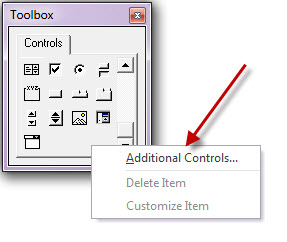
Once The Control is registered, it can be added to the Control Toolbox available in the VBA area of Excel:
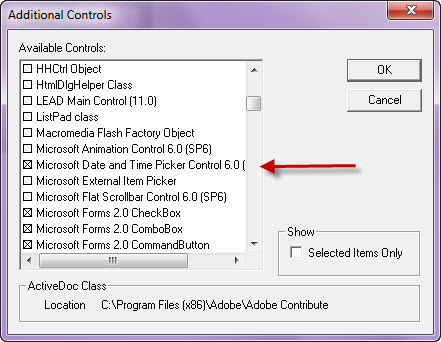
Select the date picker control from the list of available Active-X controls:
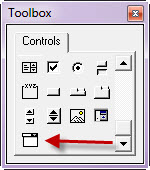
Once it is selected, it can be used from the toolbox:
Date Picker Events
The Date Picker uses a number of events that the Developer can use to fine-tune the control's behavior:
' **********************************************************
' The Enter Event Is Similar to the Initialize event of
' Other Controls - Choose This To Initialize The Date
' **********************************************************
Private Sub DTPicker1_Enter()
    MsgBox ("Date Picker Enter")
End Sub

' **********************************************************
' The Change Event Is Triggered By Any Change To The
' Date Picker Calendar, Including Selecting Another Month
' **********************************************************
Private Sub DtPicker1_Change()
    MsgBox ("Date Picker Change")
End Sub

' **********************************************************
' The DropDown Event Is Triggered By The Drop Down of the
' Date Picker's Calendar
' **********************************************************
Private Sub DTPicker1_DropDown()
    MsgBox ("Date Picker Drop Down")
End Sub

' **********************************************************
' The MouseDown Event Is Triggered By A Mouse Down
' **********************************************************
Private Sub DTPicker1_MouseDown(ByVal Button As Integer, ByVal Shift As Integer, ByVal X As stdole.OLE_XPOS_PIXELS, ByVal Y As stdole.OLE_YPOS_PIXELS)
    MsgBox ("Date Picker Mouse Down")
End Sub

' **********************************************************
' The CloseUp Event Is Triggered When The Calendar
' Is Closed After A Date is Selected
' **********************************************************
Private Sub DTPicker1_CloseUp()
    MsgBox ("Date Picker CloseUp")
End Sub

' **********************************************************
' The Exit Event Is Triggered At Date Picker Exit
' **********************************************************
Private Sub DTPicker1_Exit(ByVal Cancel As MSForms.ReturnBoolean)
    MsgBox ("Date Picker Exit")
End Sub
Suggested Use Of Date Picker Events
Most of the date picker events are for special purposes. The one Date Picker control I use the most is the Enter event so that I can enable the Check Box property and initialize the date of the Date Picker control to today's date. I actually use a button to process the contents of the date picker instead of trying to use the Exit event built into the Date Picker. A simple form might contain the date picker control and an Active-X button which uses the final date selected by the user in the Date Picker. Here is a sample of the VBA code behind the form that contains the date picker - and also the VBA code on the button control next to the date picker.
Option Explicit
' **********************************************************
' This Is The Code Behind The Date Picker
' It Initializes The Date Picker With Today's Date
' The User The Selects a Year, Month and Day From The
' Date Picker Control
' **********************************************************
Private Sub DTPicker1_Enter()
    DTPicker1.CheckBox = True
    DTPicker1.Value = Date
End Sub

' **********************************************************
' When The User Selects A Date, They Click the "OK" button
' Which I Include Next To The Date Picker.
'
' This Is The Code Behind a Button Control That Uses
' The Date Selected By The User From the Date Picker
' The Example Below Will Vary Widely Depending On Your
' Requirements. The Code Below interfaces with a Worksheet
' Event.  It places the date in a Worksheet Cell and
' Then Closes The Form That Contains The Date Picker
' **********************************************************
Private Sub cmdSelectDate_Click()
dteDateSelected = DTPicker1.Value
rngTarget = dteDateSelected
Cells(rngTarget.Row - 1, rngTarget.Column + 1).Select
SendKeys "~", False
Unload Me
End Sub